How to Set TradingView Alerts: A Step-by-Step Guide for Beginners

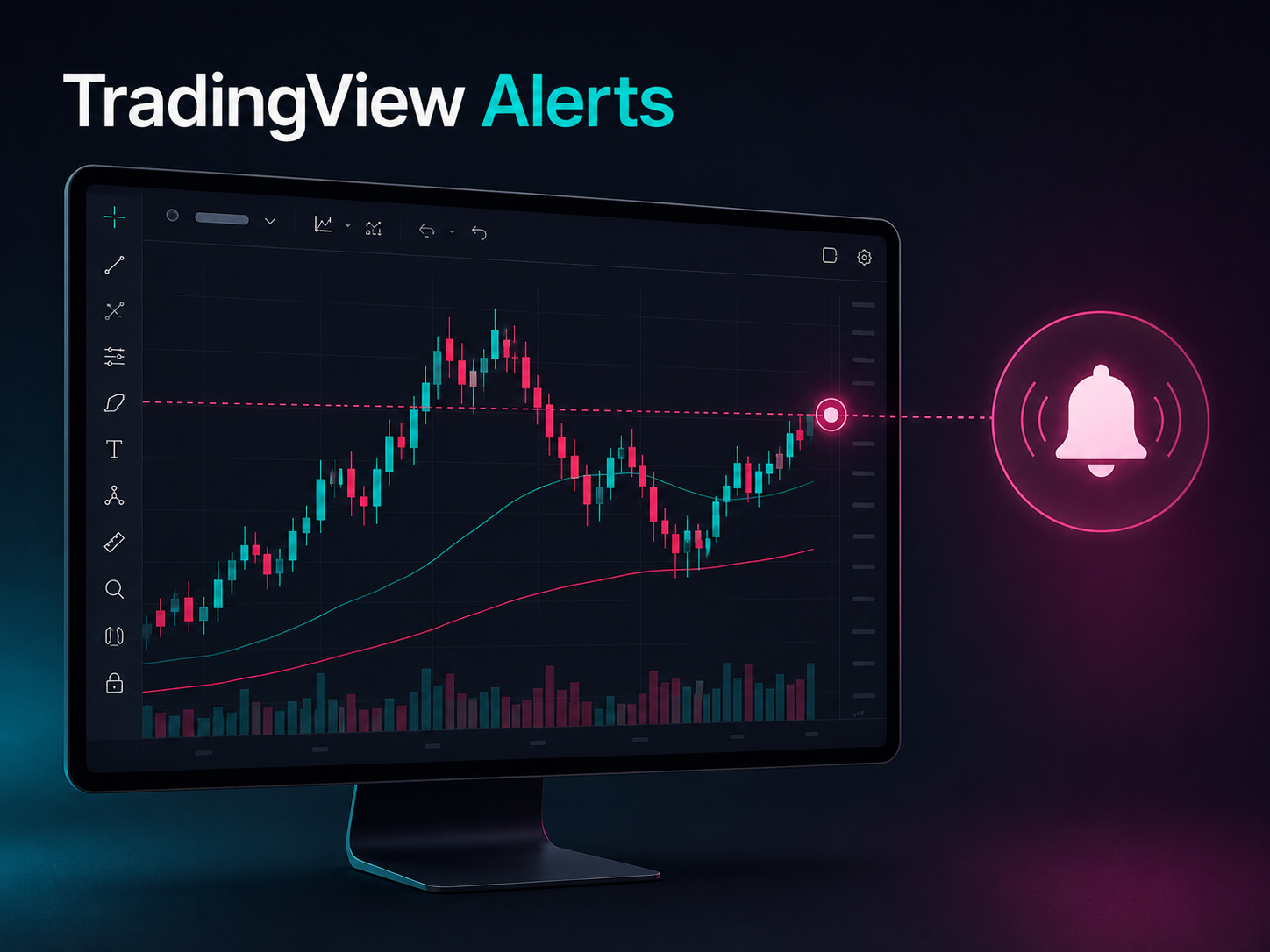
Quick steps: Open TradingView Supercharts and choose a symbol. Select Create alert, choose a price or indicator condition, set the trigger and notification options, then select Create. Check the symbol, exchange and timeframe first; an alert notifies you when its condition occurs and does not place a trade.
What Are TradingView Alerts?
TradingView alerts can help traders monitor price levels, indicators and technical conditions without keeping a chart open throughout the day.
Instead of repeatedly checking whether a market has reached an important level, you can define a condition and let TradingView notify you when that condition occurs.
TradingView alerts currently support conditions based on price data, indicators, strategies, chart patterns and supported drawing tools. Watchlist alerts are also available on eligible subscription tiers.
A basic example would be a notification when an asset reaches a price you are monitoring. A more advanced setup could use TradingView alerts when an indicator crosses a threshold or when price interacts with a trend line.
There are three useful categories to understand:
- Price alerts: Monitor changes in the selected symbol’s price.
- Technical alerts: Monitor indicators, strategies, drawings or other technical conditions.
- Watchlist alerts: Apply the same condition across multiple symbols in a watchlist where supported.
TradingView describes price alerts as conditions that can trigger when a symbol reaches, exceeds or falls below a specified level. Technical alerts can monitor a broader range of events involving indicators, strategies, drawings and chart patterns.
For beginners, price-based TradingView alerts are usually the easiest place to start because the condition can be checked directly against the chart.
Educational disclaimer: This article is for educational and informational purposes only. Alerts, indicators and chart conditions do not constitute investment advice or trading signals. Always evaluate market context and risk independently before making a trading decision.
How TradingView Alerts Work
When you create TradingView alerts, you define:
- what should be monitored;
- the condition that should trigger the notification;
- how frequently it can trigger;
- when the alert should expire;
- the message associated with it; and
- where the notification should be delivered.
TradingView’s current alert configuration includes settings for the symbol, condition, trigger frequency, expiration and message. Depending on the configuration, frequency options can include only once, every time, once per bar close or once per minute.
One important detail is timeframe dependency.
Price alerts based directly on a symbol’s data series are independent of the chart interval. Technical TradingView alerts can depend on the selected interval because indicators and strategies may calculate differently across timeframes.
For example, an RSI condition on a 15-minute chart will not necessarily represent the same market condition as RSI on a one-hour chart.
That is why the alert timeframe should match the timeframe used in your trading plan.
How to Set a TradingView Price Alert
The basic process for creating TradingView alerts takes only a few steps.
Step 1: Open TradingView Supercharts
Open TradingView Supercharts and select the market you want to monitor.
Confirm that you have selected the correct:
- symbol;
- exchange;
- contract or instrument; and
- market type.
This is particularly important when several exchanges list instruments with similar ticker symbols.
Step 2: Decide What You Actually Want to Monitor
Before creating the alert, identify why that level matters.
Examples could include:
- previously identified support;
- resistance;
- breakout level;
- invalidation level;
- range boundary; or
- another price level defined by your analysis.
TradingView alerts are more useful when they correspond to an existing trading rule rather than an arbitrary number.
For example, there is little value in placing an alert at a round number simply because it is easy to remember if that number has no relevance to your analysis.
Step 3: Open the Create Alert Window
TradingView currently provides several ways to open the alert dialog.
You can:
- click Create Alert on the upper toolbar;
- open the Alert Manager and select Create Alert;
- right-click the chart and choose the alert option;
- use
Alt + Aon Windows; - use
Option + Aon macOS; or - create an alert from supported lines, channels or the price scale.
Once the window opens, you can configure your TradingView alerts.
Step 4: Select the Alert Condition
Choose the symbol and condition you want TradingView to monitor.
For a simple price level, the objective might be to know when price:
- reaches a level;
- moves above a level; or
- falls below a level.
TradingView’s alert system supports these core price conditions.
The condition should match the reason you created the alert.
Suppose you are monitoring resistance at ₹1,000.
If your interest is specifically a move above ₹1,000, it is usually more precise to monitor that direction than to receive a notification every time price moves across ₹1,000 in either direction.
Step 5: Choose the Trigger Frequency
Frequency is one of the most important TradingView alerts settings.
Available frequency choices depend on the alert type, but TradingView currently supports configurations such as:
- only once;
- every time;
- once per bar close; and
- once per minute.
Only once
The alert stops after triggering once.
This is useful when you only need to know the first time a specific level is reached.
Every time
The alert can trigger repeatedly when the defined condition occurs.
This may be useful for recurring conditions, but a frequently crossed price level can also generate unnecessary notifications.
Once per bar close
This option is particularly relevant when your trading process depends on completed candles.
Suppose your strategy requires a candle to close above resistance.
An intrabar alert could notify you as soon as price moves above the level, even if the candle later closes back below it.
In that situation, configuring TradingView alerts around the completed candle is more consistent with the rule being followed.
Step 6: Set the Expiration
Choose how long the alert should remain active.
TradingView allows an expiration to be defined and provides open-ended alerts in supported configurations and subscription plans. Watchlist alerts have separate restrictions regarding open-ended settings.
Expiration matters because market structure changes.
A price level that was relevant today may no longer be important several weeks later.
Instead of leaving every alert running indefinitely, review whether the reason for the alert still exists.
Step 7: Give the Alert a Clear Name
A descriptive name becomes important once several TradingView alerts are active.
A practical format is:
SYMBOL – TIMEFRAME – CONDITION – LEVEL
For example:
BTCUSD – 1H – Resistance Break – 65000
or:
NIFTY – 15M – Support Test – 24800
The exact wording is less important than being able to understand the alert immediately when the notification appears.
Step 8: Choose How You Want to Be Notified
TradingView currently supports several notification methods, including:
- app notifications;
- desktop pop-ups;
- email;
- sound;
- alternative email/plain-text delivery; and
- webhook URLs.
For many traders, mobile notifications are the simplest way to receive TradingView alerts without remaining in front of a chart.
Step 9: Check the Settings Before Creating It
Before selecting Create, check:
- symbol;
- exchange;
- condition;
- price level;
- timeframe where relevant;
- trigger frequency;
- expiration;
- alert name; and
- notification method.
A small configuration error can cause an otherwise correct alert to trigger at the wrong time.
TradingView Alerts
Monitor markets without watching charts constantly
Price Alerts • Indicator Alerts • Mobile Notifications
Affiliate disclosure: Some links on this page are affiliate links. If you sign up or purchase through these links, Trading Turtle may earn a commission at no additional cost to you. This does not influence our comparisons, ratings or editorial conclusions.
How to Set TradingView Alerts on Indicators
Indicator-based TradingView alerts can monitor technical conditions rather than a fixed market price.
TradingView allows alerts to be created on supported built-in indicators and many community-created indicators. You can either right-click the indicator and select Add alert, or create an alert through the Alert Manager and select the required indicator in the Condition field.
Examples might include monitoring:
- RSI reaching a defined level;
- a moving-average crossover;
- price crossing an indicator;
- an oscillator moving above or below a threshold; or
- a custom Pine Script condition.
The indicator should already be part of a defined trading process before the alert is added.
TradingView alerts should notify you that an existing condition has occurred; they should not be used to invent a trading rule after the notification arrives.
Important: Changing the Indicator Does Not Automatically Update the Alert
This is an easy mistake to make.
TradingView states that if you change an indicator’s parameters after creating an alert, the existing alert continues operating with the original settings used when it was created.
For example, imagine you create an alert using:
RSI length = 14
You later change the visible chart indicator to:
RSI length = 21
The previously created alert does not automatically become an RSI-21 alert.
If the indicator settings materially change, review or recreate the associated TradingView alerts.
How to Set Alerts on Trend Lines and Drawing Tools
TradingView alerts can also monitor supported drawing objects.
TradingView currently supports technical alerts on tools including:
- lines;
- channels;
- rectangles; and
- Anchored VWAP.
Available conditions depend on the drawing.
For lines, TradingView documents conditions such as:
- crossing;
- crossing up;
- crossing down;
- greater than; and
- less than.
For channels and rectangles, alerts can monitor events such as entering, exiting, remaining inside or moving outside the defined area.
Example: Trend-Line Alert
Suppose you have identified an ascending trend line.
Instead of watching the screen continuously, you could configure TradingView alerts to notify you when price crosses that line.
You can then reopen the chart and evaluate:
- whether the trend line remains valid;
- the candle structure;
- volume;
- broader market context; and
- your predefined risk conditions.
The notification itself does not confirm that the market will reverse or continue.
It simply tells you that the condition you asked TradingView to monitor has occurred.
TradingView Alert Frequency: Which Setting Should You Use?
Frequency is one of the most commonly misunderstood parts of TradingView alerts.
Consider a hypothetical example.
Resistance is located near ₹1,000.
During a 15-minute candle:
- price rises to ₹1,005;
- then falls back;
- the candle eventually closes at ₹992.
A condition based on an intrabar move above ₹1,000 may trigger.
A condition requiring confirmation at bar close may produce a different result.
Neither approach is inherently correct.
The correct setting depends on the rule being applied.
Use intrabar monitoring when:
- the price touch itself matters;
- immediate awareness matters;
- your strategy does not require candle-close confirmation.
Consider bar-close monitoring when:
- your strategy specifically requires a closed candle;
- temporary intrabar moves frequently create false triggers;
- your analysis is based on confirmed candle structure.
The key principle is simple:
Configure TradingView alerts to match the condition you would use if you were manually watching the chart.
How to Receive TradingView Alerts on Your Phone
TradingView supports mobile alert notifications.
To receive them:
- Install the current TradingView mobile app.
- Sign in using the account where the alert was created.
- Enable Notify on App when configuring the alert.
- Make sure your phone allows notifications from TradingView.
Once configured, TradingView alerts can continue running even if TradingView is not open on your computer.
TradingView confirms that alerts are processed server-side, so closing TradingView or leaving the chart page does not stop an active alert from running.
Your device still needs to be able to receive the selected notification method.
Phone settings, connectivity and notification permissions can therefore affect whether you notice the alert.
How TradingView Webhook Alerts Work
Webhooks are a more advanced use of TradingView alerts.
A webhook allows TradingView to send an HTTP POST request to an external URL when an alert triggers.
TradingView states that if the alert message contains valid JSON, the webhook request is sent with an application/json content type. Otherwise it is sent as plain text.
Webhooks can be useful for connecting alerts to:
- external applications;
- notification services;
- custom dashboards; or
- other automated workflows.
However, they require more technical care than ordinary chart notifications.
Webhook Security
TradingView specifically warns users not to include login credentials, passwords or other sensitive information in webhook messages or URLs.
TradingView also states that its alerts are not designed as an automated trading system.
Connecting TradingView alerts to external software therefore introduces additional technical, security and trading risks.
For beginners, it is usually better to understand ordinary price and technical alerts before moving into webhook-based workflows.
Managing Existing TradingView Alerts
As your alert list grows, organization becomes more important.
TradingView’s Alert Manager allows users to browse and edit existing alerts. Current sorting options include fields such as:
- ticker;
- name;
- message;
- creation date; and
- trigger time.
Review active TradingView alerts periodically.
Ask:
- Does this level still matter?
- Has the market structure changed?
- Is the alert attached to an old indicator setup?
- Am I still trading or monitoring this symbol?
- Is another alert now duplicating the same condition?
Removing obsolete alerts keeps the list easier to understand.
It can also reduce unnecessary notifications caused by technical levels that are no longer relevant.
How Many TradingView Alerts Can You Create?
The number of active TradingView alerts depends on your subscription.
TradingView’s current pricing page lists three active price alerts on the Basic plan, with progressively higher limits on paid plans. The current Premium plan lists 400 price and 400 technical alerts, while Ultimate lists 1,000 of each. Watchlist-alert availability also varies by tier.
These limits can change, so check TradingView’s current pricing page before selecting a plan specifically because of alert capacity.
More alerts are not automatically more useful.
A trader who only needs five important levels may gain little from maintaining hundreds of active TradingView alerts.
Choose a subscription based on the workflow you genuinely use rather than the highest available limit.
Common TradingView Alert Mistakes
TradingView alerts are relatively simple to configure, but small mistakes can make them noisy or misleading.
1. Selecting the Wrong Symbol
Always verify the exchange and instrument.
Two instruments can have similar names while representing different markets or contracts.
2. Ignoring the Timeframe
Timeframe matters for technical conditions.
An indicator calculated on 15 minutes may behave very differently on four hours.
3. Using the Wrong Trigger Frequency
If your strategy requires a candle to close, an intrabar alert can notify you before your own confirmation rule has actually been satisfied.
4. Changing an Indicator Without Recreating the Alert
As TradingView documents, changing the visible indicator parameters does not automatically modify an alert that was already created.
Review the existing alert whenever important indicator settings change.
5. Creating Too Many Alerts
A large number of TradingView alerts can become counterproductive.
Constant notifications can encourage reactive decision-making and make genuinely important conditions harder to notice.
6. Treating Every Alert as a Trade Signal
An alert does not know:
- your account risk;
- position size;
- broader trend;
- nearby support or resistance;
- market liquidity;
- news risk; or
- whether your setup remains valid.
TradingView alerts identify conditions. The trader still has to evaluate the trade.
7. Leaving Old Alerts Running
A market can move far away from the structure that originally justified an alert.
Delete or pause alerts that no longer correspond to your current analysis.
Best Practices for Using TradingView Alerts
A few simple habits make alerts significantly more useful.
Start With Important Levels
Create TradingView alerts only where there is a reason to reassess the chart.
Avoid alerting every minor price movement.
Use Descriptive Names
Include the:
- symbol;
- timeframe;
- condition; and
- level or purpose.
This saves time when the notification arrives later.
Match Frequency to Your Trading Method
If your process requires closed-candle confirmation, your alert configuration should reflect that rule.
Keep the Message Clear
The message should tell you why the alert exists without requiring you to reconstruct the original analysis.
Review Old Alerts
Remove obsolete levels and outdated technical conditions.
Keep Risk Decisions Separate
TradingView alerts can prompt you to reopen the chart.
They should not determine:
- position size;
- stop-loss distance;
- acceptable risk;
- leverage; or
- whether a trade should be entered.
Test Advanced Integrations
If webhooks or custom scripts are involved, test the workflow carefully before relying on it for anything important.
Are TradingView Alerts Free?
TradingView provides limited price-alert functionality on its Basic plan, while paid subscriptions provide higher limits and additional alert capabilities. TradingView’s current plan comparison shows alert capacity increasing substantially across Essential, Plus, Premium and Ultimate tiers.
For beginners, the free allowance can be enough to learn how TradingView alerts behave before paying mainly for additional alert capacity.
A paid plan may become more relevant if your workflow genuinely requires:
- many simultaneous price levels;
- technical alerts;
- large numbers of active conditions;
- watchlist monitoring;
- webhook notifications; or
- other paid TradingView features.
Do not upgrade merely because a higher number is available.
Choose features based on how you actually analyse markets.
TradingView Alerts and Trading Discipline
The biggest benefit of TradingView alerts is not predicting markets.
It is reducing unnecessary chart watching.
A structured trader might analyse the market, identify several levels, set alerts and then wait until price reaches an area worth reviewing.
That workflow can be more disciplined than watching every tick.
However, alerts can create the opposite problem if they are overused.
A trader who creates dozens of low-quality alerts may simply replace constant chart watching with constant phone notifications.
The quality of the underlying analysis still matters.
TradingView alerts work best as attention-management tools rather than automatic decision-makers.
Key Takeaways
TradingView alerts can make market monitoring more efficient when they are tied to clearly defined conditions.
Remember these principles:
- Start with a small number of meaningful levels.
- Verify the symbol and exchange before creating the alert.
- Match the timeframe and trigger frequency to your trading method.
- Use indicator alerts only when the indicator is already part of a defined process.
- Recreate alerts when important indicator parameters change.
- Keep old alerts organised and remove obsolete conditions.
- Use mobile notifications when you need to monitor markets away from your desk.
- Treat webhooks as an advanced technical feature.
- Never send sensitive credentials through webhook messages.
- Most importantly, do not confuse an alert with a trading signal.
Final Thoughts
TradingView alerts are most useful when they reduce repetitive screen time without removing the trader from the decision-making process.
Start with a few important price alerts and learn how the different trigger settings behave.
Once the basic workflow is clear, you can gradually explore indicator conditions, drawing-tool alerts, strategies and advanced integrations.
The most important principle is straightforward:
TradingView alerts should monitor trading conditions you have already defined—not create decisions for you.
When configured carefully, they can make a structured trading workflow more efficient while leaving market context, invalidation, position sizing and risk management where they belong: with the trader.
– Frequently Asked Questions (FAQs)
Yes. TradingView states that its alerts run server-side. Once an active alert has been created, closing the website or chart does not stop TradingView’s servers from monitoring it.
Yes. TradingView supports technical alerts on supported indicators, strategies and Pine-based conditions. Available conditions depend on the particular indicator or script.
Yes. TradingView supports alerts on several drawing tools, including lines, channels, rectangles and Anchored VWAP.
Yes. TradingView provides mobile-app notifications. Install the application, sign in to the same account, enable app notifications in the alert and allow notifications in your device settings.
The alert may be configured to trigger during the bar rather than once per bar close. Review both the trigger frequency and the underlying condition. TradingView provides frequency settings that include once per bar close for supported configurations.
Alerts can have expiration settings. Open-ended functionality depends on the alert type and subscription configuration, so check the expiration field when creating an alert.
TradingView states that the existing alert continues using the indicator settings from when the alert was created. If the new settings matter to your condition, recreate or update the relevant alert.